Recently my home network download speed went from being fast to annoyingly slow. I have a cable connection, and use a wireless device to connect all of my computers, phones, tablet, game systems and printers. Everything goes through the wireless access point.
Up until a few weeks ago, everything was ok, so I assumed it was the cable company’s fault, of course. I soon learned that was not the case. I could directly connect to my cable modem and get really fast download speeds. That meant it had to be my Cisco Linksys Wireless Router. I suppose it’s old, in Internet time. The router was working fine though.
I realized that there was a new wi-fi network in the neighborhood, and saw that three of us were using channel 6 for our networks. I suspected that could be the problem, and it was a correct assumption. Once I changed the channel ID, I was back to 20 mbps, up from .05. What a relief!
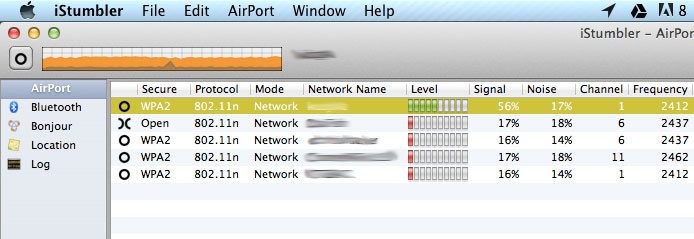
By the way, from the screen shot above, you can see why you should secure your network. Any neighbor or passerby could access your shared computers and printers once they’re on your network! An open network is a bad idea.
Read more here:
http://www.dslreports.com/faq/14250

How do I change my email password in cPanel?
/in Web Hosting/by ConnectNCConnectNC hosting customers and their employees or other users can perform a variety of tasks without assistance from tech support personnel. One of those tasks is changing an email account password. There are a few simple steps to follow:
We require the use of strong passwords. This protects you, ConnectNC and all of the other users on the ConnectNC network. When weak passwords are used, there is the possibility that they can be easily cracked, making the account vulnerable. Vulnerable accounts may be used by spammers and phishers. When that happens, the Internet users who are the victims of the attack launched using your account receive junk mail that could have been prevented! Some ISPs will block our IP addresses after our customers’ accounts were used to spam. It is for these reasons and more that we require users to have strong passwords.
Creating an html e-mail message for Apple Mail, using MS Word
/in Email, FAQ's/by ConnectNCThese directions assume that you’re proficient in the use of Microsoft Word and Apple Mail. This is just one simple way to create an html e-mail message, and we also assume that the reader is able to save and find files on his or her Mac.
Open Microsoft Word and create a document by clicking on File and New Blank Document. Once you’ve opened a new document, click on File and Save as Web Page. Now your document is ready for editing.
You can insert images and change formatting. Be creative to make your document look beautiful!
Once you’ve saved your document, you’ll be able to send it as an html message.
Show your school spirit – but NOT in your password!
/in Security Tip/by ConnectNCIt’s great to be a loyal fan or follower of your school’s team, but the one thing you don’t want to do is use your team name as your password! If you’re a UNC student or grad, and you’re using “tarheels” (or any variant thereof) as your password, change it now. It’s insecure on many, many levels. First, it’s a word in the dictionary. Second, it’s too weak. Be creative when choosing a password, and make sure it’s secure. Your online accounts will be at risk of being compromised until you change your password!
What could you use instead? If you really must use the word “tarheels” in your password, change it to a passphrase that will be easy enough for you to remember, but difficult to guess or crack.
For example, “I_love_my_Tarheels!” is probably something you can remember, and it’s way more secure than just “tarheels.”
Use a tool like this password strength checker to find out how secure your password is. If the result is anything other than VERY STRONG, please change it!
http://www.passwordmeter.com/
DMC Auto Transport
/in Logo Design Porfolio/by ConnectNCWi-fi suddenly very slow?
/in Computer, FAQ's, Internet Access/by ConnectNCRecently my home network download speed went from being fast to annoyingly slow. I have a cable connection, and use a wireless device to connect all of my computers, phones, tablet, game systems and printers. Everything goes through the wireless access point.
Up until a few weeks ago, everything was ok, so I assumed it was the cable company’s fault, of course. I soon learned that was not the case. I could directly connect to my cable modem and get really fast download speeds. That meant it had to be my Cisco Linksys Wireless Router. I suppose it’s old, in Internet time. The router was working fine though.
I realized that there was a new wi-fi network in the neighborhood, and saw that three of us were using channel 6 for our networks. I suspected that could be the problem, and it was a correct assumption. Once I changed the channel ID, I was back to 20 mbps, up from .05. What a relief!
By the way, from the screen shot above, you can see why you should secure your network. Any neighbor or passerby could access your shared computers and printers once they’re on your network! An open network is a bad idea.
Read more here:
http://www.dslreports.com/faq/14250
Wired technology writer suffers a major hack
/in Online Computer Backups, security/by ConnectNCMatt Honan recently found his digital life in a shambles. Bad guys were able to access his online accounts AND his personal computer. They wiped every shred of data from his MacBook.
If Matt Honan, a technical writer for Wired Magazine, can get hacked in such a fashion, so can any of us. We now rely on our computers and the Internet for almost everything! We store photos on our computers and in the cloud. We bank online. Who doesn’t order stuff online? Almost nobody!
The question is, what can you do to protect your accounts and your data?
Are you backing up your data? If you are, are you backing up the right data?
ConnectNC takes data protection seriously. If you need our help getting the right stuff backed up, please give us call or open a ticket. We have several backup options available, and can develop a plan for you or your business.
Read Matt’s story here:
http://www.wired.com/gadgetlab/2012/08/apple-amazon-mat-honan-hacking/
PayPal’s automatically billed payments
/in FAQ's, Security Tip/by ConnectNCUse this page to manage your payments for:
Click Update to change any item you see there.
Unexpected email with an unexpected link? Don’t click on it!
/in FAQ's, security, Security Tip/by ConnectNCTrojan.LameShield
No matter what Internet Security software you’ve installed (you DO have something installed, right?), don’t ever click on a link you receive from an unexpected source! These can include, but are not limited to, notices from FedEx about a shipment to you, or that you sent, Verizon (or other company) phone bill that is extremely high, notice from a bank (with which you probably don’t even have an account) or any other official-looking notice from a company asking you to click on something.
Read the message carefully. You’ll almost always see poor grammar, spelling and punctuation. There will often be odd contradictions. In the email to the left, the sender claims to be FedEx, but asks you to go to your US Post Office for a package.
There may be otherwise empty email messages from friends, too, that contain a link. Never click on those either! That’s a hallmark of a hijacked email account. Let your friend know to change his or her account password asap.
If it’s too late because you’ve already clicked and installed a trojan, give us a call: 910-695-7068.
Backing up your computer
/in FAQ's, Online Computer Backups/by ConnectNCNow that online backup services exist for less than $75 per year, and 1 TB external drives can be bought for less than $100, there’s no good reason to not backup up your computer. It’s better to be safe than sorry. Why lose your precious pictures or business documents when it can be prevented?
Contact us for really affordable online residential backups, or for backups for your company. We will develop a recovery plan that works for you. Wouldn’t you feel better if you could be back up and running within a few hours of a crash?
Call us at 910-695-7068 ext 23 and ask for a backups specialist or click here to sign up for your free trial!
Configure your iPhone or iPad for ConnectNC Hosting
/in Email, FAQ's, Web Hosting/by ConnectNCType in your actual email address here. Do not use “mydomain.com.”
If your email address is @pinehurst.net or @connectnc.net, please use these mail servers:
Incoming Mail Server: mail.connectnc.com
Outgoing Mail Server: mail.connectnc.com
Your username is your full email address.