Fake Flash Update Warning
There’s a certain web site I’ve visited a few times that produces a fake flash update warning. Beware of these warnings. Adobe will never display a warning such as this when you’re surfing the web.
Here’s a screen capture.
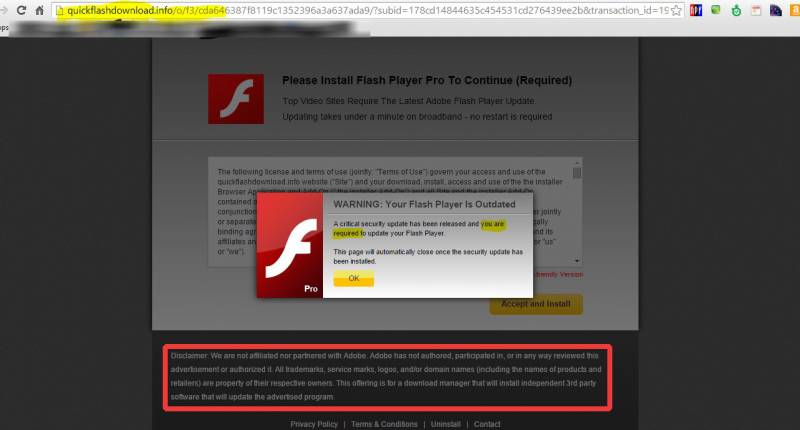
First of all, I want to warn everyone never to click on anything like this without examining it first. There are three glaring examples of fakery to be found at a cursory examination.
#1 The URL has nothing to do with adobe.com.
#2 The message says that you are required to update your flash player. You are required to update nothing of the sort. As the saying goes, you are only required to die and pay taxes! Adobe (and other legitimate companies) will not generally display scary messages like this.
#3 This is the most important part… inside the red box, the advertiser says they are not affiliated with Adobe, the makers of Flash..
If you do accidentally click on the OK button, you will be asked to download or install something with a generic name, like “installer.exe.” Don’t do it! In my experience today, I clicked on nothing at all, and still got the download dialog box.
Well, now that you’ve determined you have detected a scam, what do you do? My advice is to close the browser. If you’re an inexperienced user, and you always seem to be getting malware, the best course of action is to go ahead and shutdown your computer without trying to click on anything at all. Press the Windows button on your keyboard to get to the start menu and click Shut down.
Be careful!
Note: I use both Windows PCs and Apple computers. I have only seen this happen on a Windows PC to date.

Set up two-factor authentication for your cPanel account
/in cPanel, Security Tip, Web Hosting/by ConnectNCHosting customers may use two-factor authentication (2fa) to better secure their cPanel accounts. 2fa adds an extra level of security. It requires a smart phone app called Google Authenticator, which is available for Android and iPhone.
You should be familiar with the steps required to install an app on your phone before you begin. Unfortunately, we cannot provide support for your smart phone as a part of our hosting support. If you need help with this, please make an appointment for a 30 minute support session at our office.
First, login to your cPanel account and then use the search to find 2fa. You will see Two-Factor Authentication, as pictured below. Click on that.
Next, click the blue button that says, “Set Up Two-Factor Authentication.”
Scan the QR code with your smart phone.
Enter the code in the space provided. Click the button that says, “Configure Two-Factor Authentication.” You must already have the Google Authenticator app on your phone in order for this to step to complete.
Accept the server name displayed on your smart phone.
From now on, you will need the smart phone app to successfully login to your cPanel account.
You can reconfigure or remove 2fa by logging in to cPanel and clicking on “Two-Factor Authentication” again.
Strong Passwords Protect You and Others
/in Security Tip/by ConnectNCUsing Strong Passwords
Additional storage available for pinehurst.net email accounts
/in Billing, Email/by ConnectNCOther customers may use ConnectNC’s pinehurst.net/connectnc.net email service for a monthly fee. Rates are billed quarterly and are listed below.
Email accounts include:
Configuring iPad Email for Your Hosting Account
/in Email, FAQ's/by ConnectNCThis article describes how to configure your iPad Mail for your ConnectNC hosting account. Please substitute your actual email account information wherever we have used yourdomain.com or chilesauce.com as examples.
This is written for an intermediate iPad user. We assume that you understand how to get to your iPad settings, and how to use your iPad to send and receive email. It’s not intended as a training article. If you need configuration or training for your iPad, we offer that as an additional service. Please contact us to schedule an appointment.
In this example, we allowed iPad Mail to use all its default settings. We did not modify anything or have to provide anything except the following three pieces of information.
Information required for mail account configuration:
Tap Next.
If you are using a cellular service, such as AT&T or Verizon to connect to the internet, please note that they may be blocking standard outbound mail ports, so you will need to contact their support to ask which ports are open for sending. If you can send mail while you’re connected to your home or office wi-fi, but cannot send while connected to a cellular service, this is a strong indication that the commonly used ports for sending are being blocked by the provider. Please contact your carrier to ask for help in this case.
Secure your communication
/in Email, FAQ's, Security Tip/by ConnectNCContact us today for an encrypted email demo! This email encryption and spam filtering service works in conjunction with your company emails, and can work with your current email hosting provider, or we can host your email instead.
Great for:
Dentists, Physicians, Real Estate Agents, Attorneys, Financial Advisors, and any business who needs to email important client information securely!
Fake Flash Update Warning
/in Security Tip/by ConnectNCFake Flash Update Warning
There’s a certain web site I’ve visited a few times that produces a fake flash update warning. Beware of these warnings. Adobe will never display a warning such as this when you’re surfing the web.
Here’s a screen capture.
First of all, I want to warn everyone never to click on anything like this without examining it first. There are three glaring examples of fakery to be found at a cursory examination.
#1 The URL has nothing to do with adobe.com.
#2 The message says that you are required to update your flash player. You are required to update nothing of the sort. As the saying goes, you are only required to die and pay taxes! Adobe (and other legitimate companies) will not generally display scary messages like this.
#3 This is the most important part… inside the red box, the advertiser says they are not affiliated with Adobe, the makers of Flash..
If you do accidentally click on the OK button, you will be asked to download or install something with a generic name, like “installer.exe.” Don’t do it! In my experience today, I clicked on nothing at all, and still got the download dialog box.
Well, now that you’ve determined you have detected a scam, what do you do? My advice is to close the browser. If you’re an inexperienced user, and you always seem to be getting malware, the best course of action is to go ahead and shutdown your computer without trying to click on anything at all. Press the Windows button on your keyboard to get to the start menu and click Shut down.
Be careful!
Note: I use both Windows PCs and Apple computers. I have only seen this happen on a Windows PC to date.
FBI issues another warning about tech support phone scams
/in FAQ's, security, Security Tip/by ConnectNCI’m pasting this in verbatim, because The FBI has very effectively communicated the extent of the problem. Be very careful about giving remote access to your computers to people you don’t know and trust!
3 November 2014
Alert Number
I-111314-PSA
NEW TWIST TO THE TELEPHONE TECH SUPPORT SCAM
The IC3 has produced Scam Alerts in the past advising the public of an ongoing telephone scam in which callers purport to be an employee of a major software company. The callers have strong foreign accents. The callers report the user’s computer is sending error messages and numerous viruses have been detected. The caller convinces the user to give them permission to run a program allowing the caller to gain remote access. The caller advises the virus can be removed for a fee.
Intimidation tactics used in this scam have influenced victims to pay fees associated with the removal of alleged viruses. It has been reported to the IC3 an individual who paid the required fees, later received a call advising the victim the funds paid for the services went to India and were used to purchase weapons for ISIS. The call came with an additional request for money to remove the victim’s name from a black list.
In a new twist to the tech support scam, cyber criminals attempt to defraud using another avenue. The scam is executed while a user is browsing the Internet. In this scenario, a website being viewed provided a link to articles related to popular topics. The user clicked the link and was redirected to a website which produced a window that advised the user’s computer had been hacked. Another window was displayed that contained a telephone number to obtain assistance. The user reported all attempts to close the windows were ineffective. Upon calling the number for assistance the user was connected with an individual who spoke with a heavy foreign accent claiming to be an Apple representative. During the process the user’s web browser was hijacked. Restarting the computer in an attempt to regain access to the Web produced another message with a different telephone number to obtain assistance.
The execution of this fraud is similar to what was reported in a Public Service Announcement (PSA) dated 07/18/2013. The PSA reports on a version of ransomware that targets OS X Mac users. This version is not a malware; it appears as a webpage that uses JavaScript to load numerous iframes (browser windows) and requires victims to close each iframe. The cyber criminals anticipate victims will pay the requested ransom before realizing all iframes need to be closed. The full PSA can be found at http://www.ic3.gov/media/2013/130718-2.aspx
If you are a victim of this scam or a similar scheme it is suggested:
To file a complaint at www.IC3.GOV
Resist the pressure to act quickly
Be cautious of clicking on unknown links
The POODLE exploit
/in Computer, Online Computer Backups, security, Security Tip/by ConnectNCIf you’re on the web much, have any online banking accounts or watch TV news, you’ve probably heard about POODLE in the last few weeks.
Rather than reinvent the wheel, I’m going to post some links here for those of you who are interested to peruse.
What you need to know about the SSLv3 “POODLE” flaw (CVE-2014-3566)
If you use the Internet at all, you’ll want to disable SSLv3 on the apps you use, too. Here’s how you can disable SSLv3.
And, once again, I want to encourage EVERYONE to backup! Please call us if you need help setting up a backup system. Or, please just click on this link to buy Carbonite now.
Stay safe out there!
Are you backing up?
/in Online Computer Backups/by ConnectNCAvoid installing junk you don’t need
/in Security Tip/by ConnectNCFor quite some time, the applications we trust and use every day have been tricking us into installing extra stuff we don’t need during the update process.
One example is Adobe Flash (pictured below). Sometimes, their “gift” to you is the Chrome browser. Other times, it’s the Ask toolbar. In this case, it’s McAfee Security Scanner. Almost always, you don’t need or want it.
You can avoid it by paying attention to the update screen and un-checking the box next to whatever it’s trying to install for you.