Your Barracuda Message Center password is the same for all senders who have sent encrypted messages to you at your email address. If you are not able to login, please try resetting your password. You are only asked to create a password for your message center the very first time you receive an encrypted message.
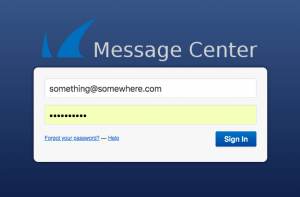
1. If you are presented with a login screen like the one below, but you do not know your password, click the link that says, “Forgot your password?”
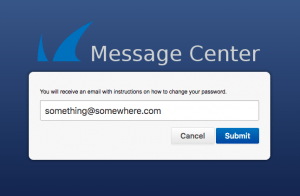
2. On the next screen, make sure the email address displayed is correct, and then click the Submit button.
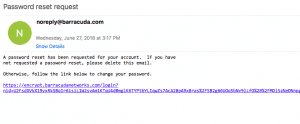
3. Shortly, you will receive an email message from barracuda.com containing a link to click. when you click that link, you will be able to change your password. After entering your new password, you will be logged in to the Secure Message Center.
Read more about our encrypted mail service here.

Unblock your IP from web server firewall
/in security, Web Hosting/by ConnectNCSettings for your hosted email
/in Email/by ConnectNCApple Mail Settings
/in Email/by ConnectNCSet Root Folder in Outlook 2013 and Older
/in Email/by ConnectNCSet a Root Folder
To do this, go to File, Account Settings and double click on your affected IMAP account. Click More Settings button then switch to the Advanced tab.
In the Root folder path field type Inbox. Exit the dialog and perform a send and receive. (If the Inbox is not your root folder, setting Inbox as the root won’t work, as it will hide all of the other folders.)
Click OK.
Check your inbox. If folders have not re-appeared, remove Inbox from the setting above and click on OK again. You should then see your folders.
Phishing posing as cPanel account suspension alert
/in Email, security/by ConnectNCHow to get a new password for your SpamPanel
/in Email, FAQ's/by ConnectNCYou can do a lot of things from your SpamPanel. First you must login. If you’ve forgotten your password or have not yet set one, here’s what you’ll need to do.
Go to https://login.antispamcloud.com/
Click on the Retrieve log-in link as pictured above.
Type in your full email address (@connectnc.net, @pinehurst.net, etc). Then click on Submit. A password reset link will be emailed to you at the address you typed in this step:
You will receive a message with the subject line, “Temporary link to change your password.” The sender will be no-reply@antispamcloud.com.
The content of the message will read:
Click on the “Set Password” link to complete the password reset.
AntiSpamCloud Protection Report
/in Email, FAQ's/by ConnectNCConnectNC is making changes to the mail system used by customers who have pinehurst.net/connectnc.net email addresses.
We are using a new cloud spam and virus filter, which will catch spam before it reaches the mail server. The new service has a much simpler daily quarantine report.
Your choices are:
A sample report is displayed below. Click to see a full size version.
Barracuda Password Reset
/in Email, FAQ's, Web Hosting Frequently Asked Questions/by ConnectNCYour Barracuda Message Center password is the same for all senders who have sent encrypted messages to you at your email address. If you are not able to login, please try resetting your password. You are only asked to create a password for your message center the very first time you receive an encrypted message.
1. If you are presented with a login screen like the one below, but you do not know your password, click the link that says, “Forgot your password?”
2. On the next screen, make sure the email address displayed is correct, and then click the Submit button.
3. Shortly, you will receive an email message from barracuda.com containing a link to click. when you click that link, you will be able to change your password. After entering your new password, you will be logged in to the Secure Message Center.
Read more about our encrypted mail service here.
Create a cPanel Account Backup
/in FAQ's/by ConnectNCHow to Configure iPhone Mail
/in FAQ's/by ConnectNCGo to Settings and tap on Mail or Accounts and Passwords (depending on IOS version).
Tap on Add Account.
Tap Other.
Going forward, you will just need to know your email account information, which is your email address, your password, and your mail server addresses for incoming and outgoing mail. For hosting accounts, both incoming and outgoing mail servers are mail.yourdomain.com, where “yourdomain.com” is your actual domain name.
You may choose either POP or IMAP for mail on your iPhone. Most people choose IMAP so storage won’t be used up by email.